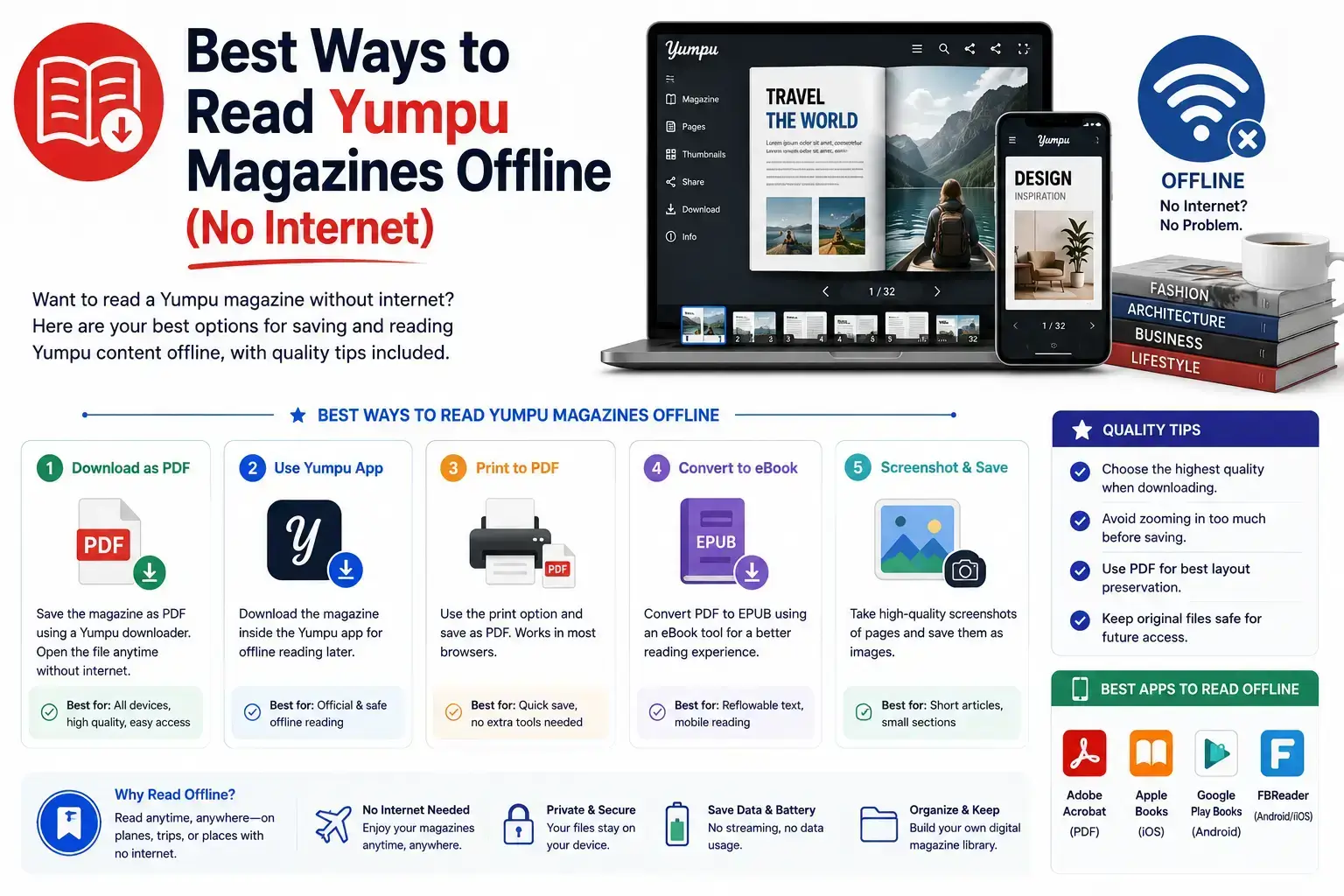
Yumpu’s page-flip viewer looks great — but it has one big limitation: you need an internet connection every single time you want to read something. This guide covers your best options for reading Yumpu content offline, without sacrificing quality.
Why Yumpu Requires an Internet Connection
Yumpu documents aren’t stored as a single downloadable file by default. Instead, each page loads individually as an image, streamed from Yumpu’s servers as you flip through. This is what makes the reading experience smooth and interactive — but it also means there’s nothing “saved” on your device unless you take an extra step.
This becomes a real problem when you’re:
- Flying or traveling somewhere without Wi-Fi
- In an area with a weak or unreliable connection
- Trying to save mobile data
- Wanting a permanent copy that won’t disappear if the document gets deleted or made private
Option 1: Check for a Yumpu Download Button
Some document owners enable a built-in download option directly on Yumpu, usually shown as a download icon in the viewer’s toolbar. This isn’t available for every document — it depends entirely on whether the publisher turned it on.
Pros: Official, direct from Yumpu, always accurate to the source. Cons: Many publishers don’t enable this option, so it’s often unavailable.
Option 2: Convert to PDF with Yumpu Downloader
If there’s no built-in download button, the most reliable method is converting the document into a PDF using Yumpu Downloader — a free tool that rebuilds every page image into a single downloadable file.
- Pros: Works on any public document, completely free, no account needed, works on phone or computer.
- Cons: Only works for public documents (private ones need the owner’s API token).
Quick Steps:
- Copy the Yumpu document’s link
- Paste it into Yumpu Downloader
- Choose your quality and page range
- Click Download
For the full walkthrough, see our step-by-step downloading guide.
Choosing the Right Quality for Offline Reading
Your ideal quality setting depends on how you plan to read the file:
| Use Case | Recommended Quality |
|---|---|
| Reading on a phone screen | Medium (452×640) |
| Reading on a tablet or laptop | High (1129×1600) |
| Printing a physical copy | High (1129×1600) |
| Quick reference / low storage space | Low (115×163) |
💡 Tip: Higher quality means a larger file size. If you’re saving many documents on a phone with limited storage, Medium is usually the best balance.
Storage and Organization Tips
Once you’ve downloaded a few Yumpu documents as PDFs, keeping them organized makes offline reading much easier:
- Name files clearly — Yumpu Downloader automatically includes the Document ID and page count in the filename
- Use a dedicated folder — create a “Yumpu PDFs” or “Magazines” folder on your device
- Sync to cloud storage — apps like Google Drive or iCloud let you access your saved PDFs across multiple devices
- Use a PDF reader app — most phones have a built-in PDF viewer, but dedicated apps often offer better bookmarking and annotation tools
What About Yumpu’s Own Mobile App?
Yumpu does offer official mobile apps for reading content, but they still generally require an internet connection to load documents, as on the website. Downloading a PDF remains the most dependable way to guarantee fully offline access.
Frequently Asked Questions
Can I read a Yumpu document without any internet at all after downloading?
Yes. Once converted to a PDF and saved to your device, you can open and read it completely offline, anytime.
Will downloading affect the document’s formatting?
No. Each page is captured as a high-quality image, so the visual layout stays exactly as designed.
Is there a limit to how many pages I can download for offline use?
You can choose any number of pages, including “All pages,” using the page selector in Yumpu Downloader.
Does this work for private documents too?
Yes, but only if it’s your own document and you provide your personal API token. See our API Token Guide for details.