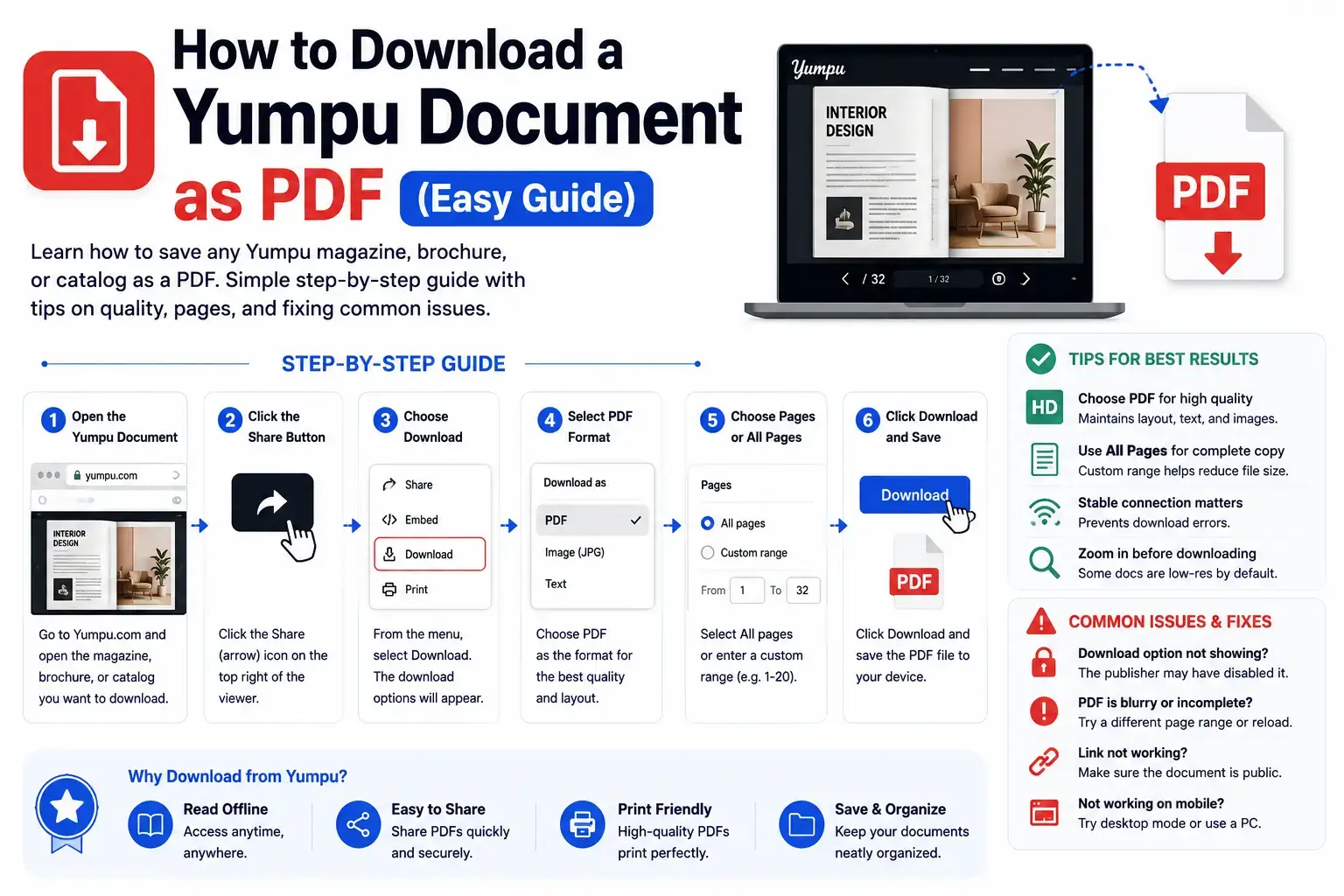
Yumpu is a popular website for reading digital magazines, brochures, catalogs, and eBooks online. But what if you want to keep a copy on your phone or computer — without needing the internet every time you open it?
This guide walks you through exactly how to turn any public Yumpu document into a PDF file, using Yumpu Downloader, a free browser-based tool. No software to install. No account needed.
What You’ll Need Before You Start
Before downloading, make sure you have these three things ready:
- The Yumpu document link — the web address of the document you want to save
- A few seconds — most documents download in under a minute
- A modern browser — Chrome, Firefox, Safari, or Edge all work fine
That’s it. No sign-up, no app, no credit card.
Step 1: Copy the Yumpu Link
Open the Yumpu document you want to download in your browser. Look at the address bar at the top — it will look something like this:
Text Example:https://www.yumpu.com/en/document/view/68514783/my-magazine
Click on the address bar, select the whole link, and copy it (Ctrl+C on Windows, Cmd+C on Mac).
💡 Tip: The number in the middle of the link (like 68514783) is called the Document ID. This is how the downloader knows exactly which document you want.
Step 2: Paste the Link into Yumpu Downloader
Go to Yumpu Downloader and find the box labeled “Yumpu Document Link.” Paste your copied link there.
If the link is correct, nothing bad happens — the tool simply gets ready to fetch your document. If the link is wrong or broken, you’ll see a clear error message telling you to check it again.
Step 3: Choose Your Image Quality
Right below the link box, you’ll see a dropdown for Image Quality with three choices:
| Quality | Size | Best For |
|---|---|---|
| 🔥 High | 1129×1600 | Printing or reading on a large screen |
| ⚡ Medium | 452×640 | Everyday reading on phone or tablet (default) |
| 💨 Low | 115×163 | Quick previews or slow internet connections |
If you’re not sure which to pick, Medium is a safe, balanced choice for most people.
Step 4: Pick How Many Pages to Download
Next to the quality dropdown is the Pages to Download selector. Choose a number like 5, 20, 50, 100, or “All pages.” If you need something specific, like exactly 35 pages, select “Custom number” and type it in.
Why does this matter? Downloading fewer pages is faster. If you only need the first chapter of a magazine, there’s no reason to wait for the whole thing.
Step 5: Click Download
Press the big red “Download PDF — It’s Free!” button. You’ll see:
- A progress bar showing which page is currently being fetched
- A live log box showing each page as it’s added successfully (or if any page fails)
- Once finished, your PDF automatically saves to your device
The file will be named something like yumpu-68514783-20pages.pdf — the Document ID and total page count are built right into the filename, so you always know what it contains.
Step 6: Open and Read Offline
That’s it. Your PDF is now saved on your device. Open it anytime with any PDF reader — no internet required.
What If the Document Is Private?
If you own the document yourself and it’s marked private on Yumpu, the public download method won’t work. Instead, switch to the “My Private Document” tab and use your personal Yumpu API token. Read our full guide: How to Find Your Yumpu API Token.
What If Something Goes Wrong?
Downloads occasionally fail due to private documents, wrong links, or slow connections. We’ve written a complete troubleshooting guide covering the 10 most common issues: Yumpu Downloader Not Working? 10 Common Errors & Fixes.
Frequently Asked Questions
Does this work on mobile phones?
Yes. Yumpu Downloader works directly in your phone’s browser on both iPhone and Android — no app needed.
How long does it take?
Most documents finish in just a few seconds to a couple of minutes, depending on page count and quality setting.
Is it really free?
Yes, completely free, with no sign-up or hidden charges.
Can I choose exactly which pages to include?
Currently, the tool downloads from page 1 up to the number you choose. If you need a very specific range, choose “Custom number” and enter the total number of pages you want from the start.
1 thought on “How to Download a Yumpu Document as PDF: The Complete Step-by-Step Guide”