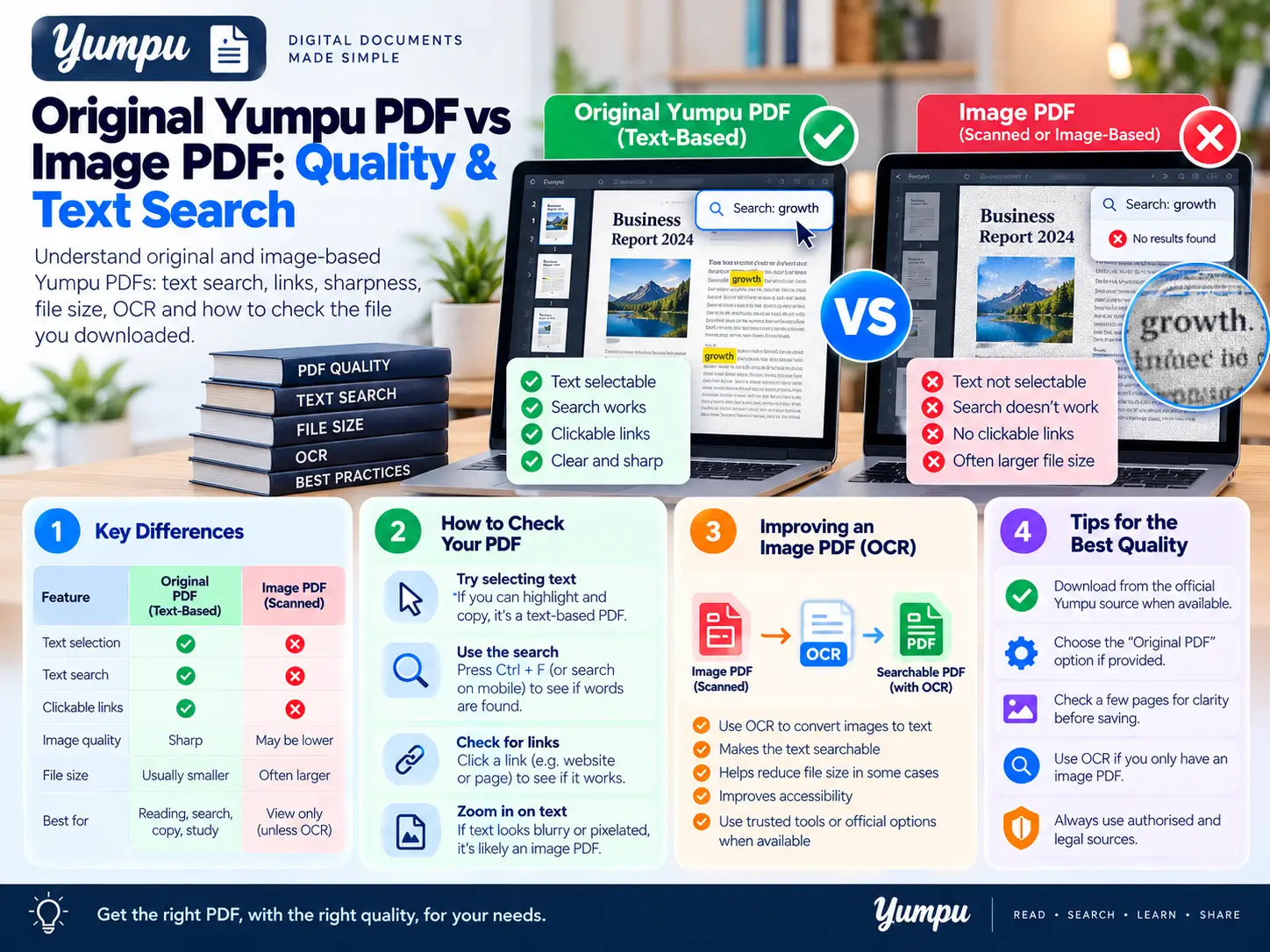
An original PDF is the file supplied by the publisher. An image-based PDF is a new document built from pictures of its pages. They may look similar at normal reading size, but they can behave differently when you search, copy text, follow links or zoom in.
Neither “PDF” nor “high quality” tells you which kind of file you have. Check the document’s actual features before relying on it for study, printing or accessibility.
A quick comparison
| Feature | Publisher’s original PDF | PDF assembled from page images |
|---|---|---|
| Where it comes from | The publisher’s source document | Images combined into a new file |
| Selectable text | May be present; depends on the source | Not provided by images alone |
| Text search | Works if usable text is present | Usually requires an added OCR text layer |
| Links and bookmarks | May be included | Not preserved simply by copying page images |
| Sharpness when enlarged | Text and vector objects may stay sharp | Limited by image resolution |
| File size | Depends on content and compression | Depends on image size, compression and page count |
| Reading order and accessibility | Depend on how the PDF was authored | Require more than page images alone |
An original PDF can itself be a scan. In that case, it may share some limitations of an image-based download.
Why two PDFs can look the same but work differently
Imagine a catalogue page showing a product name, description and photograph.
In a PDF created from a publishing application, the product name may be stored as text. A reader can select it, search for it and sometimes follow an attached link.
In a page-image PDF, those letters may simply be pixels within a picture. You can see the product name, but the file may contain no text characters for a search function to find.
This distinction matters when you need to:
- Search a long report.
- Copy a quotation accurately.
- Follow document links.
- Use assistive reading software.
- Enlarge fine print or diagrams.
What Yumpu Downloader produces
Yumpu Downloader combines accessible public page images into an image-based PDF. It does not claim to recover the publisher’s original PDF.
The result is intended for viewing saved pages. Do not assume it contains the source document’s text layer, interactive elements or accessibility structure.
For the preparation and saving process, see our Yumpu PDF download guide.
Which option should you choose?
Choose the original when document features matter
If the publisher offers an original PDF, start there—especially when you need text search, links, bookmarks or detailed diagrams.
Still check the file. An official source does not guarantee selectable text, accessibility tags or perfect image quality.
Consider an image-based copy for permitted visual reading
An image-based PDF may be useful when you have permission to save accessible pages and mainly need to read their visible content offline.
Its usefulness depends on whether the images are clear enough and whether the saved file contains all the pages you need.
How to check your downloaded PDF
1. Try selecting a sentence
Open the file in a PDF reader and select a short line.
If text can be selected, the document may contain native text or OCR results. Some reading apps also recognise text independently, so selection in one app does not prove the PDF has an embedded text layer.
2. Search for an unusual word
Choose a clearly visible word and use the reader’s search function.
If nothing is found, check another page. The document could contain a mixture of text pages and image-only pages, or the recognised text could contain errors.
3. Copy a short passage
Paste it into a text editor and compare it with the visible page. Check punctuation, numbers and reading order, especially in multi-column layouts.
4. Inspect fine details
Zoom into small text, chart labels and line drawings. Look for pixelation or compression artefacts.
Judge quality at the size you intend to read or print. An image that looks acceptable on a phone may be less clear on a large printed page.
5. Check completeness separately
Searchable text does not prove that every page is present. Compare the first page, last page and page count with the publication or requested range.
Can OCR make an image PDF searchable?
Yes. Optical character recognition, or OCR, analyses the letters in page images and can add searchable, selectable text.
Adobe’s official text-recognition documentation explains this process. OCR output should be reviewed because recognition can introduce mistakes.
OCR does not recreate the publisher’s original file. It also does not automatically restore working links, bookmarks, correct reading order or complete accessibility.
Keep the unmodified PDF and save the OCR version separately. Before quoting or extracting important information, compare the recognised text against the visible page.
Does a larger PDF mean better quality?
No. File size alone is not a quality score.
A large file may contain inefficiently compressed images. A smaller original PDF may display sharp text because that text is stored as characters rather than full-page pictures.
Compare readability, completeness and required features instead of choosing whichever file is larger.
Why “high quality” may still look blurry
A quality setting cannot guarantee that the source image contains enough detail for your purpose.
If small text is unclear, compare a sample against the publication. Try another available quality setting, then inspect the result before processing the whole document.
If the publisher can supply the original PDF, that may be the more useful option. For download-specific problems, see our troubleshooting guide.
Frequently asked questions
Is an image-based PDF a fake PDF?
No. It can be a valid PDF containing page images. The important question is whether it provides the features you need.
Will converting page images preserve clickable links?
Not by itself. Links require additional information in the PDF; a picture of a link is not necessarily clickable.
Can I print an image-based PDF?
Usually, but inspect a sample at the intended print size first. Screen readability does not guarantee print quality.
Is an original PDF always searchable?
No. The original may contain scanned pages without OCR, or text that does not extract correctly.
Which format is better for offline reading?
Either can work if it is saved locally, complete and readable. For searching, copying or accessibility, inspect the document’s text and structure before choosing it. Our offline reading guide explains how to organise saved copies.