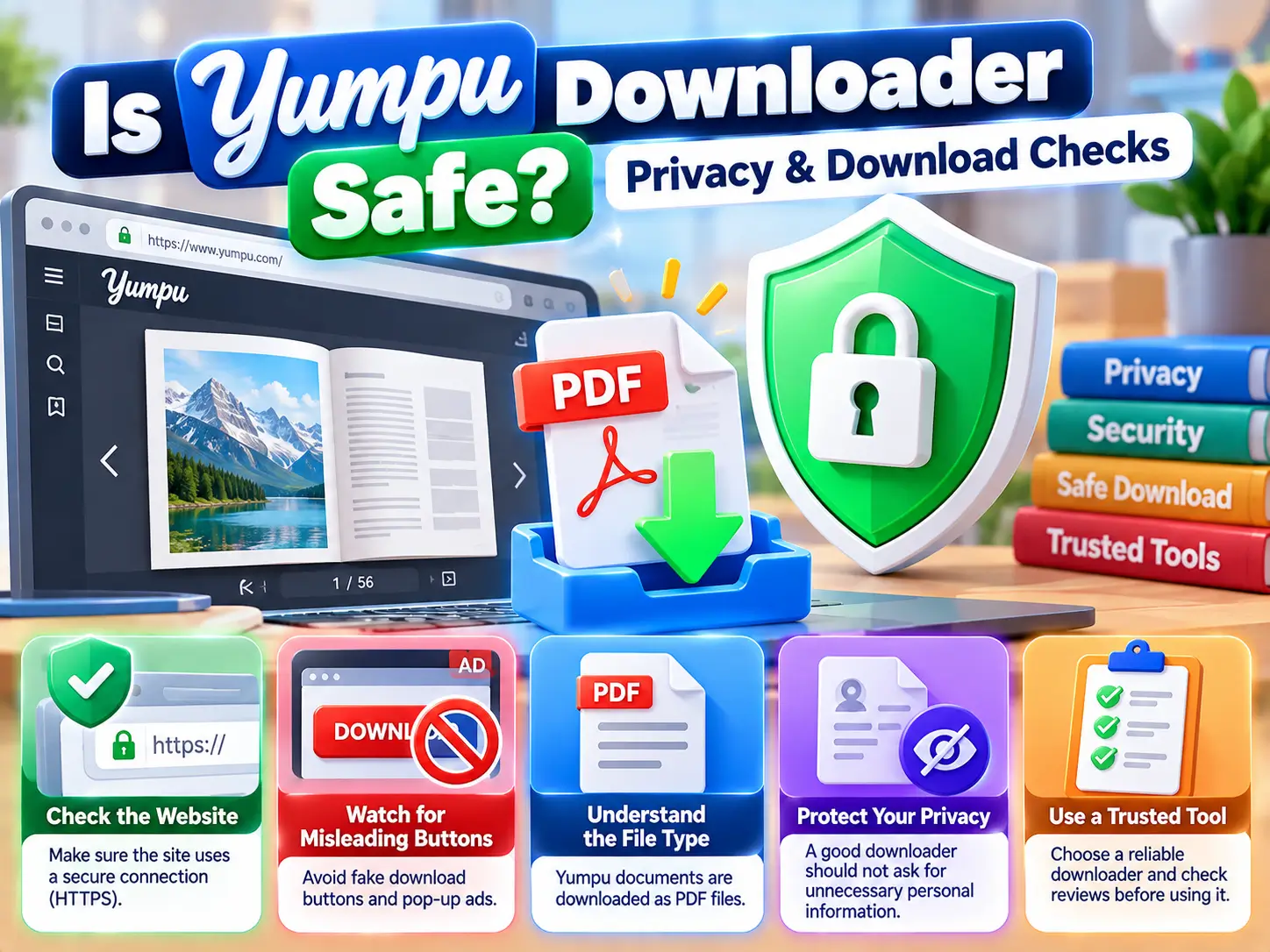
Judge a Yumpu downloader by what it requests, what it downloads, and how it handles your information. A professional-looking page or a “secure” badge doesn’t prove that.
Before using one, check the website address, avoid unnecessary credential requests, and confirm that the result is the PDF you expected. Where the publisher provides an official PDF download, start with that option.
Yumpu and independent downloaders are different services
Yumpu hosts digital publications. An independent downloader is a separate website or application that may help save accessible content.
YumpuDownloader.com is independent of Yumpu. Its current tool works with public page images and does not accept passwords or API tokens. It does not support private or paywalled publications.
If you are new to the platform, our guide to what Yumpu is explains the difference between the publishing service and a downloading tool.
Check these things before downloading
1. Confirm the website address
Look at the browser’s address bar rather than relying on a logo or page title.
A similar name does not establish that two websites have the same owner. If you follow a search result or an advertisement, check where it actually takes you.
HTTPS protects the connection to a website. It does not prove that the website’s claims, files or business practices are trustworthy.
2. Consider whether the requested information is necessary
A public-document downloader should explain why it needs any information beyond a publication link.
Be particularly careful if a page requests your Yumpu password, email password, payment details or account token to complete what was presented as a simple public PDF download.
Do not send credentials through a support form. A useful problem report normally contains the public document link, browser name and visible error.
3. Identify the actual download control
A page may contain advertisements alongside its own buttons. Before clicking, check whether the control belongs to the tool you are using.
An unexpected request to install a browser extension, allow notifications or download an installer is a different action from saving a PDF. Stop and understand the request before proceeding.
4. Check the downloaded file
Look at the complete filename and file type.
If you expected a PDF but received an executable, installer or unrelated archive, do not open it simply because a page called it a document download.
A .pdf extension alone is not a guarantee of safety either. Keep your browser and PDF reader updated, and pay attention to their warnings.
5. Take browser warnings seriously
Chrome can flag or block downloads for several reasons, including dangerous, suspicious or insecure files. A warning deserves investigation; it should not be dismissed because a website tells you to disable protection.
Google’s explanation of blocked downloads describes the warning categories.
What “browser-based” means for privacy
A browser-based tool can prepare a file on your device while still making network requests.
For this tool, the published data-flow description says that the browser requests images from Yumpu and a PDF library from a CDN. It says the widget does not upload the generated PDF or store document-link history. Website analytics and hosting logs are separate.
That distinction matters: local PDF preparation does not mean that no provider receives ordinary request information.
Before using any tool for sensitive material, look for a clear explanation of:
- Whether the document or link is uploaded.
- Which external services are involved.
- Whether files or submission histories are retained.
- How to contact the operator.
Do not assume another downloader follows the same process.
Safety, permission and download quality are separate questions
A file can open correctly while still being incomplete. A tool can function without establishing that you have permission to save a particular publication.
Check all three questions:
| Question | What to check |
|---|---|
| Is the process appropriate? | Website identity, requested permissions and browser warnings |
| May I save this document? | Your ownership, licence or publisher’s permission |
| Is the result useful? | Correct publication, readable pages and expected page count |
Use the download guide for the saving workflow and the original PDF versus image PDF comparison to understand the resulting file.
What to do if something unexpected happens
If a download opens unrelated tabs, asks for credentials or gives you an unexpected file, stop that process.
Write down the website address, the button you selected and the message shown. Do not include private account information in screenshots.
For problems on our website, use the contact page. Details about the project are available on the About page.
Frequently asked questions
Does “no signup” mean a downloader is safe?
No. It describes an account requirement, not a security assessment. You still need to check the download and the page’s behaviour.
Should I install an extension to save a PDF?
Only if you intentionally chose an extension and understand its permissions. An unexpected installation request should not be treated as a routine PDF-saving step.
Is a successful download proof that the file is complete?
No. Open the file and check its first page, last page and expected page count.
Can this article guarantee that a downloader is risk-free?
No. Website behaviour, advertisements, dependencies and files can change. These checks help you evaluate a download without relying on unsupported safety promises.