
Smart SIM registration is the process of linking your Smart mobile number to your identity through Smart SIM registration portal. It is required by the Philippine SIM Registration Act (Republic Act No. 11934), it is completely free, and most people complete it in about 10 minutes with a phone and a valid ID.
You can register through Smart’s online portal, the official Smart App, or in person at a Smart store. This guide covers all three options, what to prepare, and how to fix the most common problems.
What Do You Need to Register a Smart SIM?
You need your Smart mobile number, a valid government-issued photo ID, and the phone with the SIM inserted so it can receive the OTP. Prepare a clear photo of your ID and a selfie in good lighting before you start, and the process moves fast.
- Your Smart mobile number (enter the 10-digit number starting with 9)
- The phone with the Smart SIM inserted, with mobile signal, to receive the 6-digit OTP by SMS
- A valid, unexpired government-issued photo ID
- A clear photo of your ID and a clear selfie, taken in good lighting with a plain background
- Your personal details exactly as shown on your ID: full name, birthday, gender, address, nationality
- A stable internet connection (Wi-Fi or mobile data)
How to Register Your Smart SIM Online
To register your Smart SIM online, open Smart’s official SIM registration portal, enter your mobile number, verify it with the 6-digit OTP, fill in your personal details, upload a valid ID and photo, and submit. Save the control number shown at the end.
Follow these steps:
- Go to Smart’s official SIM registration portal (smart.com.ph/simreg). Type the address yourself or reach it from Smart’s official website. Never start from a link inside a random text message.
- Enter your 10-digit Smart mobile number (starting with 9) in the registration box.
- Tick the box confirming you have read the Terms and Conditions, then tap Send OTP.
- Wait for the 6-digit OTP to arrive by SMS, enter it on the portal, and verify. The OTP expires in five minutes, so do not leave the page waiting.
- Fill in the registration form: full name, birthday, gender, address, nationality, and registration type. Match your ID exactly.
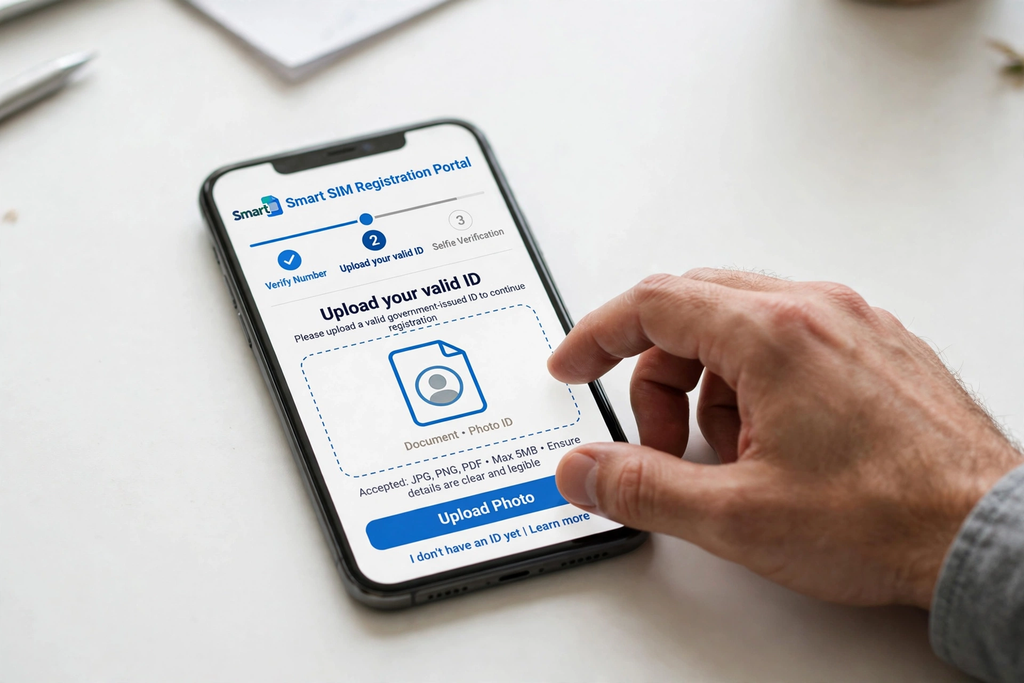
- Select your ID type and upload a clear photo of your valid government-issued ID.
- Complete the photo or face-verification step as prompted. If the live scan does not work, you can usually upload a selfie instead.
- Review all your details carefully. Tick the required boxes (Privacy Notice and attestation of accuracy). The marketing boxes are optional.
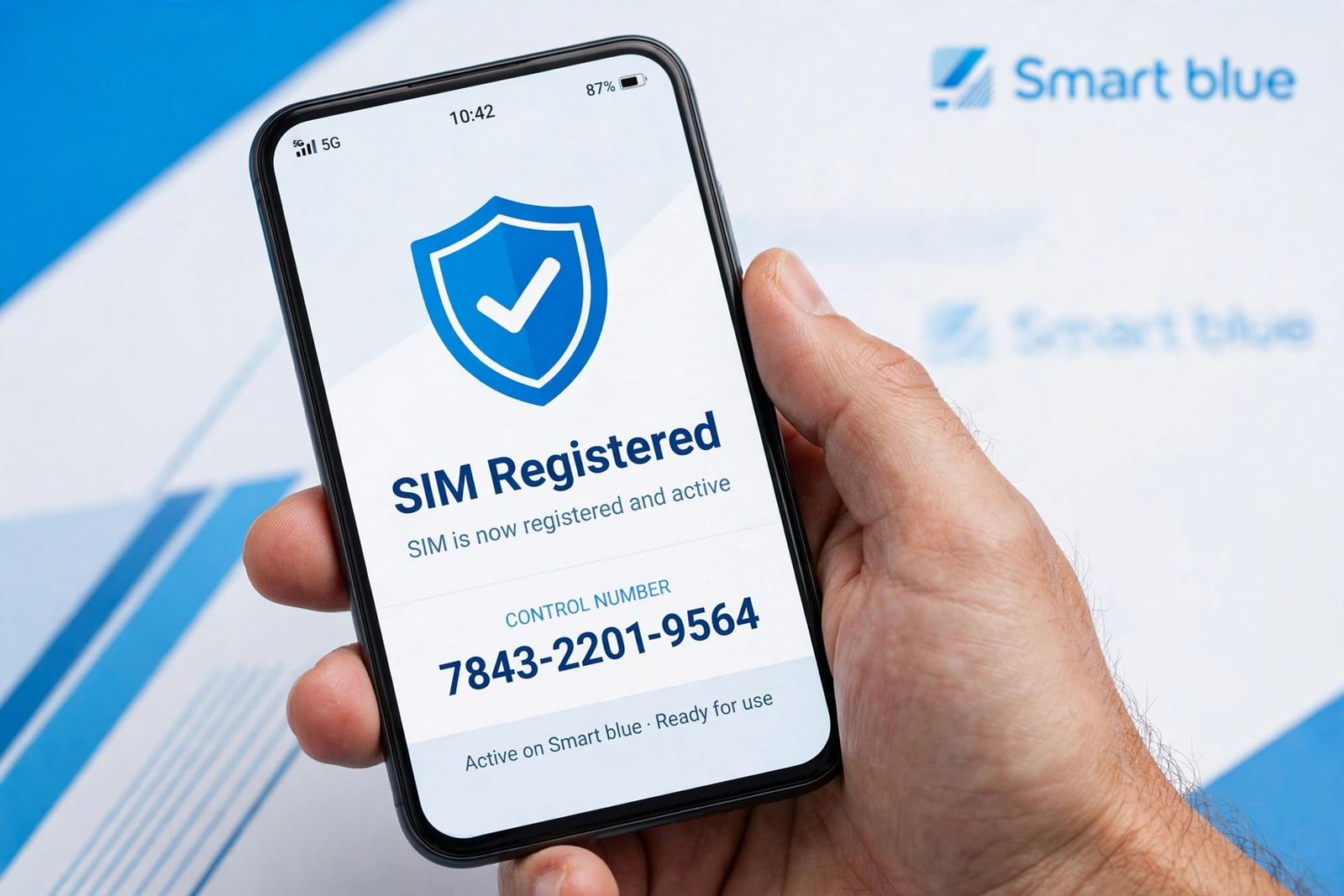
- Submit the form and save the control number shown on the confirmation screen. Keep the confirmation SMS Smart sends you.
What If the OTP Does Not Arrive?
If the OTP does not arrive, check your signal first, then use the resend option. A weak signal or a mistyped number causes most OTP failures.
- Make sure the Smart SIM is inserted and the phone shows mobile signal.
- Double-check that you typed the correct mobile number.
- Look for the resend OTP option on the portal and wait a full minute or two.
- Move somewhere with a stronger signal or a steadier connection, then try again.
Never share your OTP with anyone. Smart will never ask you for it.
How to Register Through the Smart App
You can also register through the official Smart App. Download it only from the Google Play Store or Apple App Store, never from an APK site or a forwarded link.
- Install the official Smart App from your app store and open it.
- Find the SIM Registration banner on the main dashboard and tap it.
- Enter your Smart mobile number and verify it with the OTP sent by SMS.
- Complete your profile details, upload your government-issued ID, and take the live selfie.
- Review your information, submit, and save the control number shown on screen.
How to Register at a Smart Store
If you prefer face-to-face help, visit a Smart store. Bring your Smart SIM or mobile number and a valid government-issued photo ID, and tell the staff you need help with SIM registration. They will walk you through the process and sort out any verification problems on the spot.
Which IDs Are Accepted for Smart SIM Registration?
Smart accepts a wide list of Philippine government-issued photo IDs, and the ID must be valid and unexpired. An expired ID will fail verification.
- Philippine National ID (PhilID) or ePhilID
- Passport
- Driver’s License
- UMID Card
- SSS ID
- PRC ID
- PhilHealth ID
- Postal ID
- Voter’s ID
- TIN ID / BIR ID
- NBI Clearance
- Senior Citizen’s Card
- Other government-issued ID with photo
Type your name and details exactly as printed on the ID. Even a small mismatch can cause the system to reject your registration.
How to Check If Your Smart SIM Is Registered
After successful registration, Smart sends a confirmation text. Keep that message along with your control number. If you are unsure about an older SIM, confirm through Smart’s official channels rather than a third-party checker site.
- Confirmation SMS: sent to your Smart number right after successful registration.
- Control number: shown on the final screen. Screenshot it or write it down.
- Smart store or hotline: staff can verify your registration status and help with problems.
What Happens If You Do Not Register Your Smart SIM?
A new Smart SIM cannot be fully activated until it is registered, so calls, texts, and mobile data stay unavailable until registration is complete. Registration is part of activation, not an optional extra.
The easiest routine: insert the new SIM, connect to Wi-Fi or mobile data, open the official registration portal, and finish the steps right away.
Common Smart SIM Registration Problems and Quick Fixes
OTP Not Received
Check your signal, confirm the number, use the resend option, and retry on a stable connection. The OTP expires in five minutes, so enter it promptly.
ID Photo Rejected
Retake the photo in better lighting with a plain background, keep the whole ID in frame, and make sure every detail is readable before uploading.
Details Do Not Match the ID
Re-type your name, birthday, and other details exactly as printed on your ID. Do not change your real information to force a match.
Number Shows as Already Registered
If the portal says your Smart number is already registered and you believe that is wrong, contact Smart through its official hotline or visit a Smart store.
Registration Page Will Not Load
Check your connection, confirm you are on Smart’s official portal, refresh the page, or try again later. High traffic can slow the portal at peak times.
Stay Safe: Avoid Fake Smart Registration Sites
Only register through Smart’s official portal, the Smart App, or a Smart store. Fake SIM registration sites are built to steal personal information and ID photos.
- Registration is free. Never pay anyone to register your SIM for you.
- Never share your OTP or upload your ID through a link from a random message or post.
- Check the website address carefully before typing any personal details.
• If a page claims to be official but sits on an unrelated domain, verify it through Smart’s official website first.
Frequently Asked Questions
Is Smart SIM registration free?
Yes. Registering your Smart SIM on the official portal is completely free. Anyone asking for payment is running a scam.
How long does Smart SIM registration take?
About 10 minutes for most people. Having your ID photo and selfie ready beforehand speeds it up.
Can I register more than one Smart SIM?
Yes, but each SIM must be registered individually. One registration does not cover your other SIMs.
Can I register my Smart SIM at a store instead?
Yes. Bring your Smart SIM or mobile number and a valid government-issued photo ID to any Smart store.
How do I know my Smart SIM registration worked?
You will see a success screen with a control number, and Smart will send a confirmation text to your number. Save both.
What is the difference between Smart and TNT?
TNT (Talk ’N Text) is a mobile brand under Smart Communications. Both Smart and TNT subscribers register through Smart’s SIM registration portal.
Do I need to register every Smart SIM I own?
Yes. Every SIM must be registered to its user before it can be fully activated and used.
Conclusion
Smart SIM registration is free, quick, and required before a new SIM can be used. Prepare your Smart number, a valid ID, and the phone with the SIM inserted, then register through Smart’s official portal or the Smart App. Verify with the OTP, upload a clear ID photo, and save your control number when you finish.
And the rule that prevents almost every problem in this guide: use only Smart’s official channels, and keep your OTP, ID, and personal d