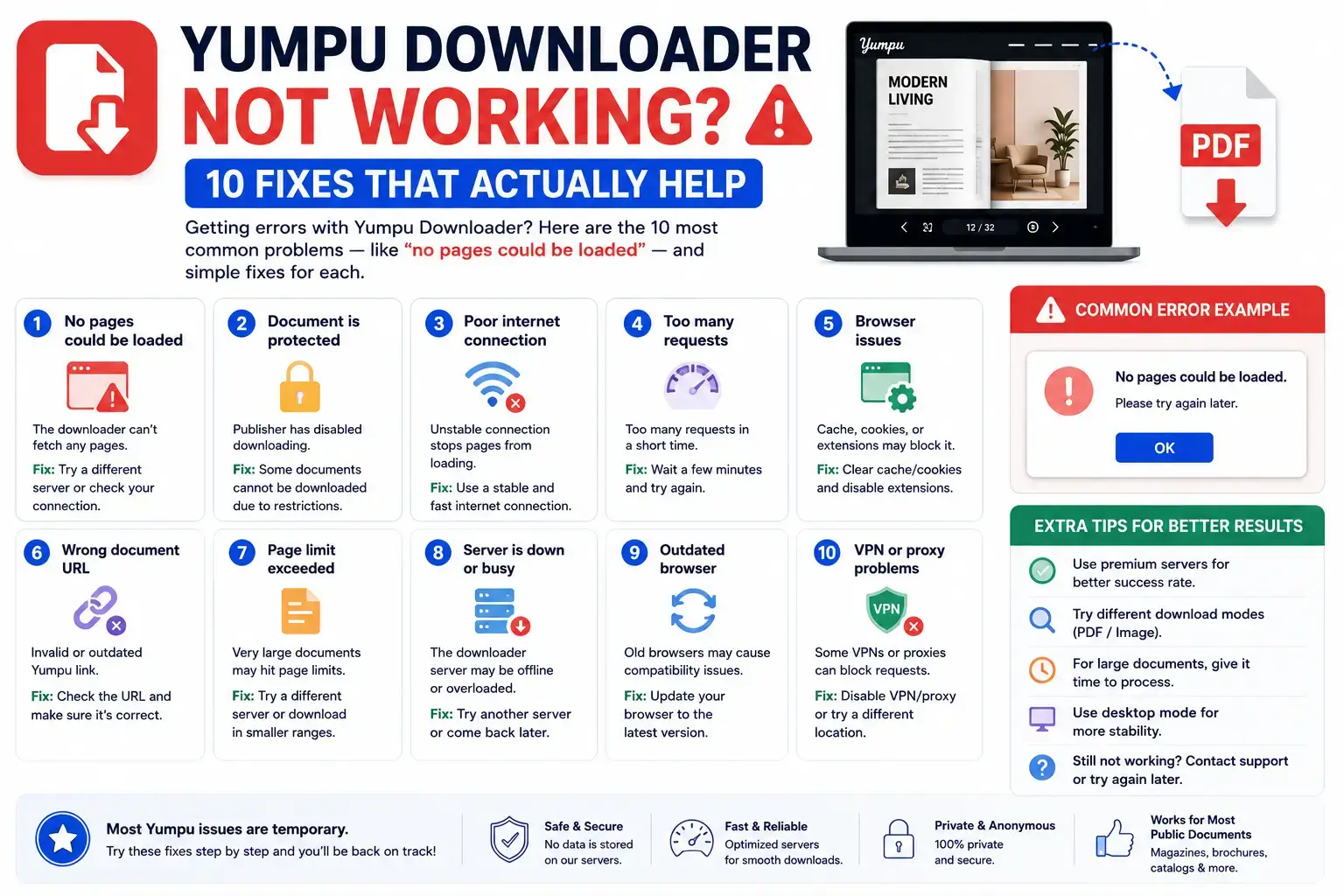
Most Yumpu downloads finish in seconds without any problems. But sometimes things don’t go smoothly — a document might be private, a link might be mistyped, or your internet connection might be slow.
This guide covers the 10 most common issues people run into with Yumpu Downloader, explained in plain language, along with the exact fix for each one.
1. “No pages could be loaded”
- What it means: The tool tried to fetch pages but couldn’t get a single one to load successfully.
- Most likely cause: The document is private. Public documents can be viewed by anyone, but private ones need a special access token.
- Fix: Switch to the “My Private Document” tab and enter your Yumpu API token. Learn how to find it in our API Token Guide. If it’s not your document, you cannot download it — this is intentional and protects the document owner’s rights.
2. The Link Shows an Error Right Away
- What it means: The tool couldn’t find a valid Document ID inside the link you pasted.
- Most likely cause: The link was cut off, mistyped, or copied from the wrong place (like a shortened link instead of the full Yumpu URL).
- Fix: Go back to Yumpu.com, open the document again, and copy the full link directly from your browser’s address bar. It should contain
/document/view/or/document/read/followed by a number.
3. The Download Is Very Slow
- What it means: Pages are loading, just taking longer than expected.
- Most likely cause: You selected High quality with a large page count, or your internet connection is slow.
- Fix: Try Medium or Low quality instead, or reduce the number of pages using the page selector dropdown.
4. The PDF Looks Blurry or Pixelated
- What it means: The images inside your PDF don’t look sharp.
- Most likely cause: The Low or Medium quality setting was selected.
- Fix: Re-download using the High (1129×1600) quality option for crisp, print-ready pages.
5. Some Pages Are Missing from the Final PDF
- What it means: The tool successfully built a PDF, but a few individual pages didn’t make it in.
- Most likely cause: A handful of pages temporarily failed to load (common with very large documents or unstable connections), but the tool kept going and included every page that did succeed.
- Fix: Try downloading again. If the same pages fail every time, it may mean those specific pages aren’t available publicly.
6. The Log Box Shows Repeated “✖” Errors
- What it means: Several pages in a row failed to load.
- Most likely cause: After 3 pages fail in a row, the tool automatically stops — this usually means you’ve reached the actual end of the document, or the document is private.
- Fix: This is often completely normal and simply means the document has ended. If it happens very early (like after page 2 of a 50-page magazine), the document is likely private.
7. My API Token Doesn’t Work
- What it means: You entered a token, but the private document still won’t download properly.
- Most likely cause: The token was copied incorrectly, has expired, or doesn’t belong to the account that owns the document.
- Fix: Log back into Yumpu, go to My Profile → API, and generate a fresh token. Copy it carefully with no extra spaces.
8. Nothing Happens When I Click Download
- What it means: The button doesn’t seem to respond at all.
- Most likely cause: The link field is empty, or your browser has JavaScript disabled (the tool needs JavaScript to work).
- Fix: Make sure you’ve pasted a link and check that JavaScript is enabled in your browser settings.
9. The File Downloads But Won’t Open
- What it means: You got a PDF file, but your device says it’s damaged or won’t open.
- Most likely cause: The download was interrupted, often due to closing the browser tab too early.
- Fix: Wait until the button changes to “✅ Download Again” before closing the tab — this confirms the file finished saving completely.
10. It Works on Computer But Not on My Phone
- What it means: The same link downloads fine on a desktop but fails on mobile.
- Most likely cause: Some older mobile browsers handle file downloads differently, or a weak mobile connection interrupts the process.
- Fix: Try using Chrome or Safari (updated to the latest version) on your phone, and make sure you have a stable Wi-Fi connection before starting.
Still Having Trouble?
If none of these fixes work, double-check that:
- ✅ You’re using the correct, full Yumpu document link
- ✅ The document is genuinely public (or you have the right API token for a private one)
- ✅ Your browser is up to date
- For a full walkthrough of the download process from scratch, see our How to Download a Yumpu Document as PDF guide.
Frequently Asked Questions
Why does the tool stop after 3 failed pages?
This is a safety feature. If 3 pages in a row fail to load, it usually means the document has ended or is private — so the tool stops instead of endlessly retrying.
Is my data lost if a download fails?
No. Nothing is ever saved on a server. If a download fails, simply try again — no personal data is stored anywhere.
Does a failed download cost me anything?
No, Yumpu Downloader is completely free, even if you need to try multiple times.
1 thought on “Yumpu Downloader Not Working? 10 Common Errors & How to Fix Them”