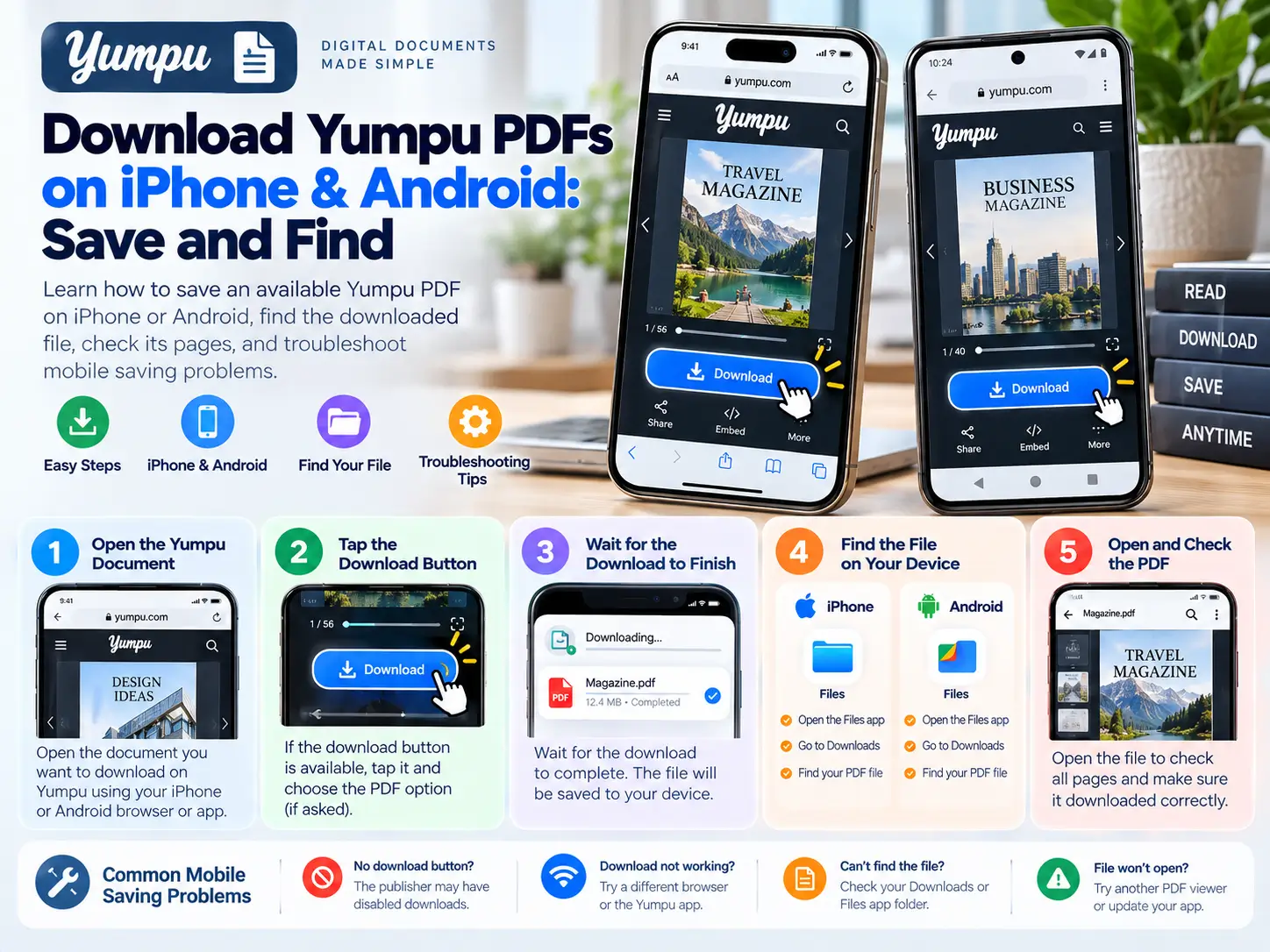
To save a Yumpu publication on your phone, first check for an official PDF download. If a PDF opens, save it to your device and reopen it from your files or downloads list.
If you use a tool to prepare an image-based PDF, generating the document and saving it are separate steps. Wait for processing to finish before saving, then check the actual file.
You should only save publications you own or have permission to download.
Choose the right starting point
| What you have | What to do |
|---|---|
| An available official PDF download | Open it and save the file |
| An accessible public publication you have permission to save | You can try preparing an image-based PDF |
| A private or restricted publication | Use the publisher’s authorised access or request a copy |
| A PDF already open in your browser | Save it, then locate it on your device |
Opening a flipbook in Safari or Chrome does not by itself save the publication as a PDF.
Save a PDF on iPhone
When an official download opens a PDF in Safari:
- Open Safari’s Share menu. Depending on the interface, you may first need to open the page options.
- Choose Save to Files.
- Select a folder and give the file a recognisable name.
- Tap Save.
- Open the Files app and locate the saved document.
Apple’s official guide to saving a PDF from Safari explains this workflow. Menu placement can vary with your iOS version.
For offline reading, open the saved document before travelling or disconnecting. A file listed in cloud storage may still need to download to your device.
Save a PDF on Android
Open the publication in Chrome and use its available PDF download.
If Chrome shows a PDF preview, look for the viewer’s download control. After saving:
- Open Chrome’s menu.
- Select Downloads.
- Find the PDF and tap it to open.
You can also check your phone’s file manager. Its name and layout vary by manufacturer.
Google’s Chrome download instructions for Android describe how to find downloaded files. A PDF preview and a saved local copy are not always the same thing, so confirm the file appears in your downloads.
Prepare an image-based PDF with Yumpu Downloader
For supported public publications you have permission to save:
- Copy the full publication URL.
- Open Yumpu Downloader in your browser.
- Paste the link and choose image quality.
- Select a page range if you know which pages you need.
- Tap Prepare PDF and keep the page open.
- Read the result message, then use Save PDF.
The current tool creates PDFs from page images. It does not offer private-document access or recover the source PDF. Automatic scanning cannot verify a publication’s total page count.
If the saved file opens in a preview, use the iPhone or Android saving instructions above. For more background, follow our full download walkthrough.
Check the PDF before relying on it
A file that opens successfully can still be incomplete. Take a moment to check:
- First page: Does it start where you expected?
- Last page: Does it reach the end of the publication or your selected range?
- Page count: Does it match the range you requested?
- Readability: Can you read small text at a comfortable zoom?
- Offline access: Can you reopen it from your device after disconnecting?
For example, a range from publication pages 10 to 20 contains 11 pages, counting both endpoints. Printed page labels may differ from the viewer’s page positions because covers and introductory pages are included.
Common mobile problems
The file opens, but I cannot find it later
You may have viewed a preview without saving a copy. Save it explicitly, choose a recognisable filename, and reopen it from Files or Downloads.
PDFs normally belong in a file manager or PDF reader, so do not rely on finding them in your photo gallery.
The browser reloads while preparing the PDF
Try a smaller page range and keep the browser in the foreground. Preparing many large images can put pressure on a phone’s available memory.
Close unnecessary tabs before retrying. Increasing quality may increase resource use, so start with a small sample before processing a long publication.
The PDF contains fewer pages than expected
Read the tool’s completion message. A stopped or partial run should not be treated as a verified complete document.
Compare the result with the publication and consult our troubleshooting guide before repeating the same settings.
The text looks blurry
Check whether the source page itself is clear. Try a higher-quality sample where available, but do not assume a larger setting can restore detail missing from the source image.
A link opened inside another app
If saving controls are difficult to find inside a messaging or social app, open the publication in Safari or Chrome and try again.
Frequently asked questions
Do I need to install a Yumpu downloader app?
Our tool runs in the browser. You still need an app or browser capable of opening the resulting PDF.
Can I save every publication on my phone?
No. Availability depends on the document, access restrictions, the method used and device resources.
Can I delete the browser tab after saving?
First reopen the file from your device’s file manager. Once you have verified the saved copy, you do not need to keep the original tab open for reading that file.
For storage and organisation tips, see how to read Yumpu magazines offline.