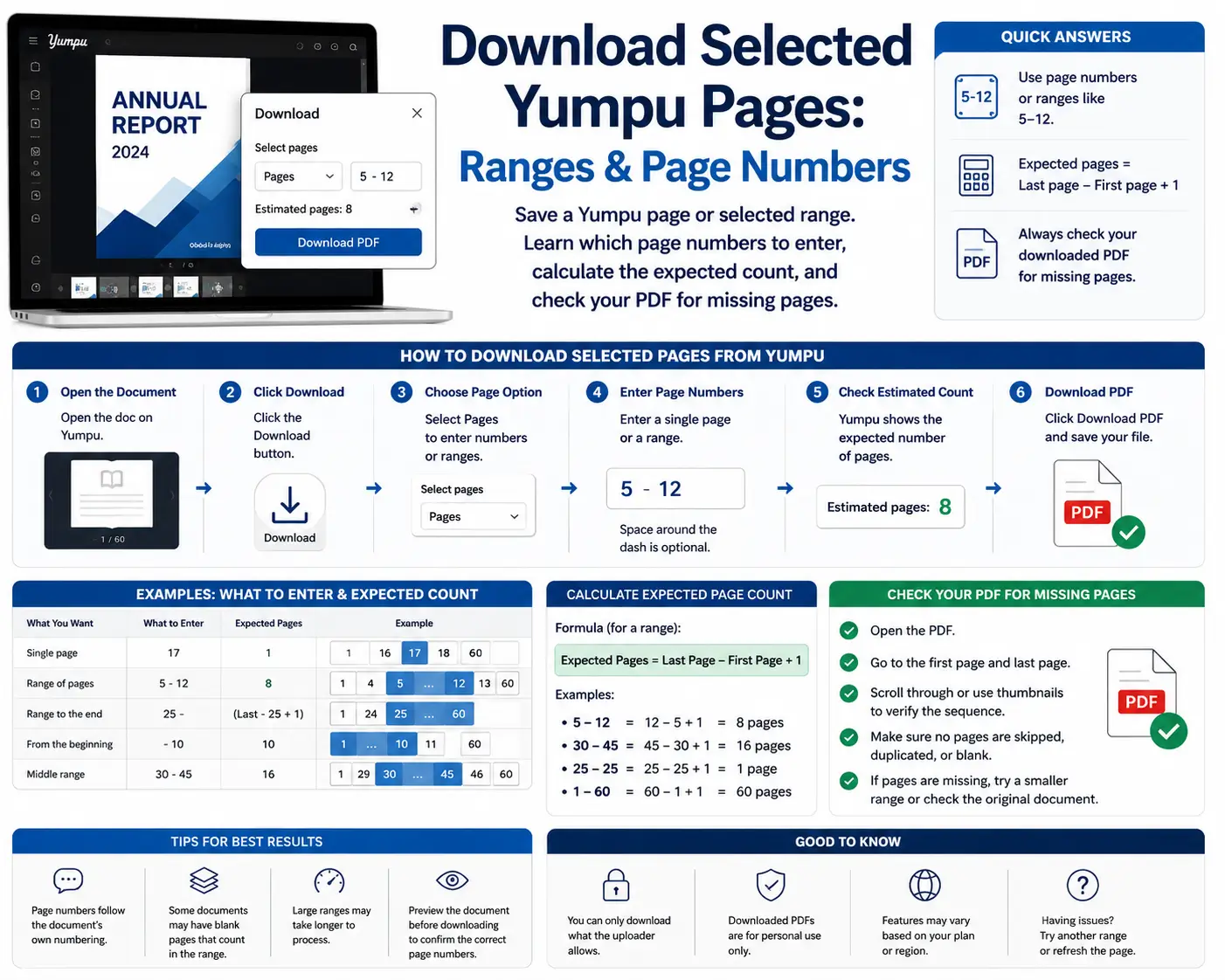
To save a specific section, choose a page range and enter its first and last page positions. Count both endpoints: pages 5 through 12 contain eight pages.
Before preparing the file, check how the publication is numbered. The printed page number inside a magazine may differ from its position in the viewer.
Use this process only for publications you own or have permission to save.
Select your range
In Yumpu Downloader:
- Paste the full publication link.
- Choose the page-range option under Pages.
- Enter First page and Last page.
- Select image quality.
- Click Prepare PDF.
- Review the result, then select Save PDF.
For one page, enter the same number in both fields. Current limits are 200 consecutive pages per run and 60 MB of downloaded image data.
For the broader workflow, see how to download a Yumpu document as PDF.
Printed page numbers and page positions can differ
A publication may begin with a cover, an inside cover and a contents page before its printed numbering starts.
Here is an illustrative example:
| Position in the publication | What the page shows |
|---|---|
| 1 | Front cover |
| 2 | Inside cover |
| 3 | Contents |
| 4 | Printed page 1 |
| 5 | Printed page 2 |
In this example, an article on printed pages 10–12 would occupy positions 13–15.
Do not apply that offset to every publication. Some documents count covers differently; use Roman numerals or restart numbering partway through.
Check the beginning and end of the section visually before choosing the range.
Calculate how many pages you should receive
Use this formula:
Expected pages = last page − first page + 1
| Range | Expected page count |
|---|---|
| 8–8 | 1 |
| 5–12 | 8 |
| 10–20 | 11 |
| 21–40 | 20 |
The extra one includes the starting page.
This gives you a useful check after saving. If you requested 10–20 and received ten pages, the count does not match the eleven-page target.
Example: save a short article
Suppose you have permission to save an article occupying publication positions 14–19.
- Open position 14 and confirm it is the article’s beginning.
- Open position 19 and confirm it includes the ending.
- Request the range 14–19.
- Expect six pages.
- Open the saved PDF and compare its first and last pages with the publication.
The saved PDF’s first page will be the first page of your selected section. It may still display a different printed page number within the page image.
Name the file clearly, for example:
publication-name-pages-14-19.pdf
That makes the range easier to identify later.
What if you need two separate sections?
For sections such as pages 5–8 and 20–23, use separate runs.
Give each file a clear range-based name. If you later combine the PDFs, check the order and make sure no section has been duplicated.
Downloading pages 5–23 as one continuous range would also include the pages between the sections.
Choose quality using a short sample
Before preparing a long range, inspect one or two representative pages.
Choose a page with the kind of detail that matters: small text, a diagram or a dense table. Save a sample, open it at a comfortable reading size and judge whether the content is clear enough.
Use the same comparison when deciding whether a larger file is worthwhile. The best choice depends on the source and your reading needs, not just the setting’s name.
Our original PDF versus image PDF guide explains why the resulting file may behave differently from a publisher-provided PDF.
If the range stops before the last page
A shorter output should be treated as partial. A failed page request does not prove that the publication has ended.
Check the message and compare the saved file with your expected range. Before retrying, confirm that the relevant pages still open in the publication.
Keep a simple record when working in batches:
| Requested range | Expected count | Your check |
|---|---|---|
| 1–20 | 20 | Confirm first and last pages |
| 21–40 | 20 | Confirm first and last pages |
| 41–55 | 15 | Confirm first and last pages |
This example uses adjacent ranges without gaps or overlapping endpoints. It is an organisation method, not a guarantee that every range will load.
For persistent failures, use the troubleshooting guide or contact support with the public URL, requested range and exact message.
When the original PDF is the better starting point
If the publisher offers its original PDF, check that option before rebuilding pages.
You may be able to save the original and extract the section you need in a PDF application while retaining useful document features. Available features depend on the source file and software.
Publishers can refer to Yumpu’s official instructions for enabling downloads.
Frequently asked questions
Can I download only the cover?
Yes, if it is available and you have permission to save it. Confirm its position and enter that position as both the first and last page.
Should I enter the number printed on the page?
Use the page’s position in the publication. Check it visually because printed numbering may be different.
Does a complete selected range mean I downloaded the whole publication?
No. It means the selected section is complete. A six-page range from a much longer magazine remains a six-page extract.
Can I select a chapter by its title?
Use the publication’s contents to find the chapter, then identify its first and last page positions.
What should I check before closing the browser?
Open the saved file, confirm its page count, inspect both endpoints and make sure important text is readable. For keeping your files organised, see the offline reading guide.