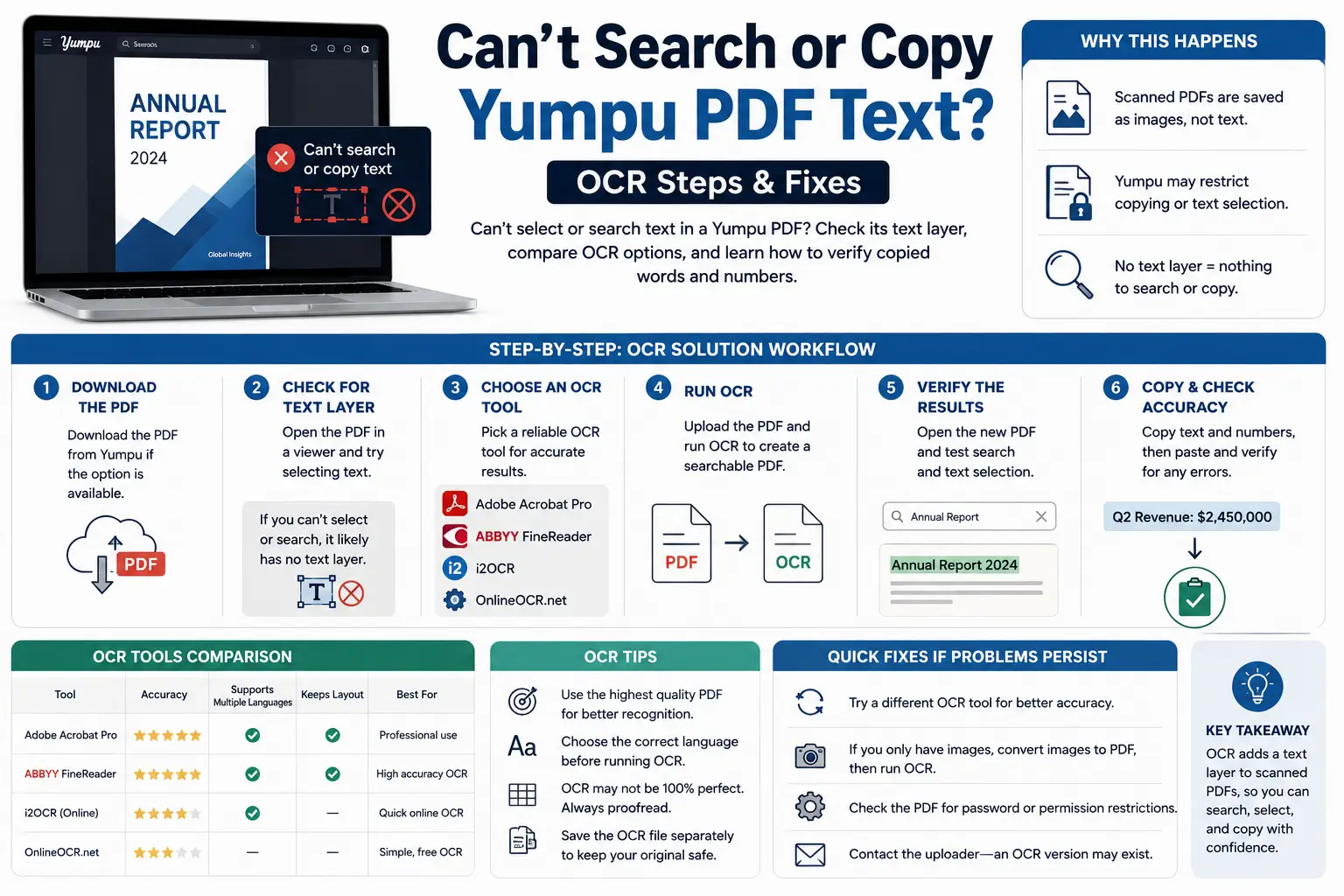
If a downloaded PDF contains pictures of pages, its visible words may not be stored as searchable text. You can read the page, but the search box may have nothing to search.
First check whether the file already contains usable text. If it does not, optical character recognition—usually called OCR—can recognise letters in the images.
Choose your next step according to the result you need: a searchable PDF or an editable text document.
Check the file before converting it
Open the PDF in a reader and try these three checks.
Select one sentence
Try selecting individual words rather than the whole page.
If your reader selects words, copy a short sentence into a plain-text editor. Compare the result with the page. Incorrect characters or a confused reading order can make an existing text layer less useful.
Some apps recognise text themselves, so selection in one app does not necessarily prove that the PDF contains an embedded text layer.
Search for a distinctive word
Choose a clearly visible word, then use the reader’s search box. Try a second word on another page.
A document may contain a mixture of searchable pages and image-only pages. One successful search does not establish that every page is searchable.
Check whether copying is restricted
If searching works but copying does not, the issue may involve document permissions or the reader’s behaviour.
Check the file’s security information and try another trusted PDF reader. If the publisher has restricted copying, request an authorised copy rather than assuming OCR is the correct solution.
For a fuller explanation of file types, read original Yumpu PDFs versus image-based PDFs.
Choose the output you actually need
| Your goal | Suitable approach |
|---|---|
| Search while keeping the page layout | Add an OCR text layer to the PDF |
| Copy a few paragraphs into notes | Extract text, then proofread it |
| Edit the wording extensively | Convert to an editable document and repair formatting |
| Preserve original links and document features | Ask for the publisher’s original PDF |
OCR identifies letters. It does not pokemonquestrecipes.org/ the original publishing project or automatically restore interactive features.
Option 1: Create a searchable PDF with Acrobat OCR
If your Acrobat installation includes OCR:
- Save a backup of the PDF.
- Open the working copy in Acrobat.
- Select All tools → Scan & OCR.
- Choose In this file.
- Set the page range and document language.
- Select Recognize Text.
- Save the result as a separate file.
These steps follow Adobe’s official text-recognition instructions. The process adds a searchable text layer. Check feature availability in your edition rather than assuming every PDF reader includes OCR.
Start with a short sample. If it works well, process the remaining pages.
Option 2: Extract text with Google Drive and Google Docs
For a small document that you are comfortable uploading to Google:
- Upload a working copy to Google Drive.
- On a computer, right-click the file.
- Choose Open with → Google Docs.
- Compare the converted text with the source.
Google recommends files of 2 MB or smaller for this workflow. Its guidance also warns that tables, columns, lists and footnotes may not transfer reliably.
See Google’s official PDF-to-text instructions. This method creates an editable document; it is not the same as preserving the original PDF layout with an added text layer.
Because this method uploads the file, consider the document’s sensitivity before using it.
Verify the result instead of trusting the completion message
Use this simple quality check after conversion:
| Check | What to look for |
|---|---|
| Search | Can you find a distinctive word from the sample page? |
| Copy and paste | Does a sentence paste in the correct order? |
| Numbers | Are dates, amounts and decimal points accurate? |
| Columns | Does text flow down one column before moving to the next? |
| Completeness | Are the required pages or paragraphs present? |
Pay particular attention to characters that look alike, such as 0 and O, or 1 and l.
For quotations, compare the copied passage against the page itself. A successful OCR process is not a guarantee of accurate transcription.
Why OCR may give poor results
The source is blurry
If letters merge together or small print is difficult to read, recognition may be unreliable.
Try a clearer source or a better-quality sample. Enlarging a low-detail image does not necessarily provide the missing information.
The page is rotated or has a complex layout
Sideways pages, tables and multiple columns can cause problems. Correct the page orientation and inspect the reading order after processing.
The recognition language is wrong
Where your OCR tool offers a language setting, choose the document’s language. Mixed-language documents still need careful review.
The PDF already has a poor text layer
A file can contain searchable text that does not match the visible words accurately. Work on a copy and check your software’s options for re-recognition before processing the entire document.
If the underlying download is blurry or incomplete, address that first using the Yumpu troubleshooting guide.
Frequently asked questions
Does changing the filename make a PDF searchable?
No. Renaming a file does not add text recognition or alter its contents.
Will OCR improve the visible image?
Its main purpose is recognising text. Some applications offer separate image-cleanup features, but searchable text does not guarantee a sharper page.
Can I search the publication online instead?
If you only need to find a passage, checking the publication’s own reader may save you a conversion step. Search availability depends on the publication and viewer.
Does OCR make a PDF fully accessible?
No. Searchable text is useful, but reading order, headings, tags and descriptions may require additional work.
Should I keep the original download?
Yes. Keep it as a reference so you can compare the converted text and recover from formatting or recognition mistakes.